Installing your eSIM
Two minutes. Do it on the phone you want to use it on — an eSIM cannot be moved afterwards.
Before you start
Be on Wi-Fi, and keep your existing SIM in the phone. This eSIM is internet only — your current number carries on working for calls and SMS.
-
1
Open the install link
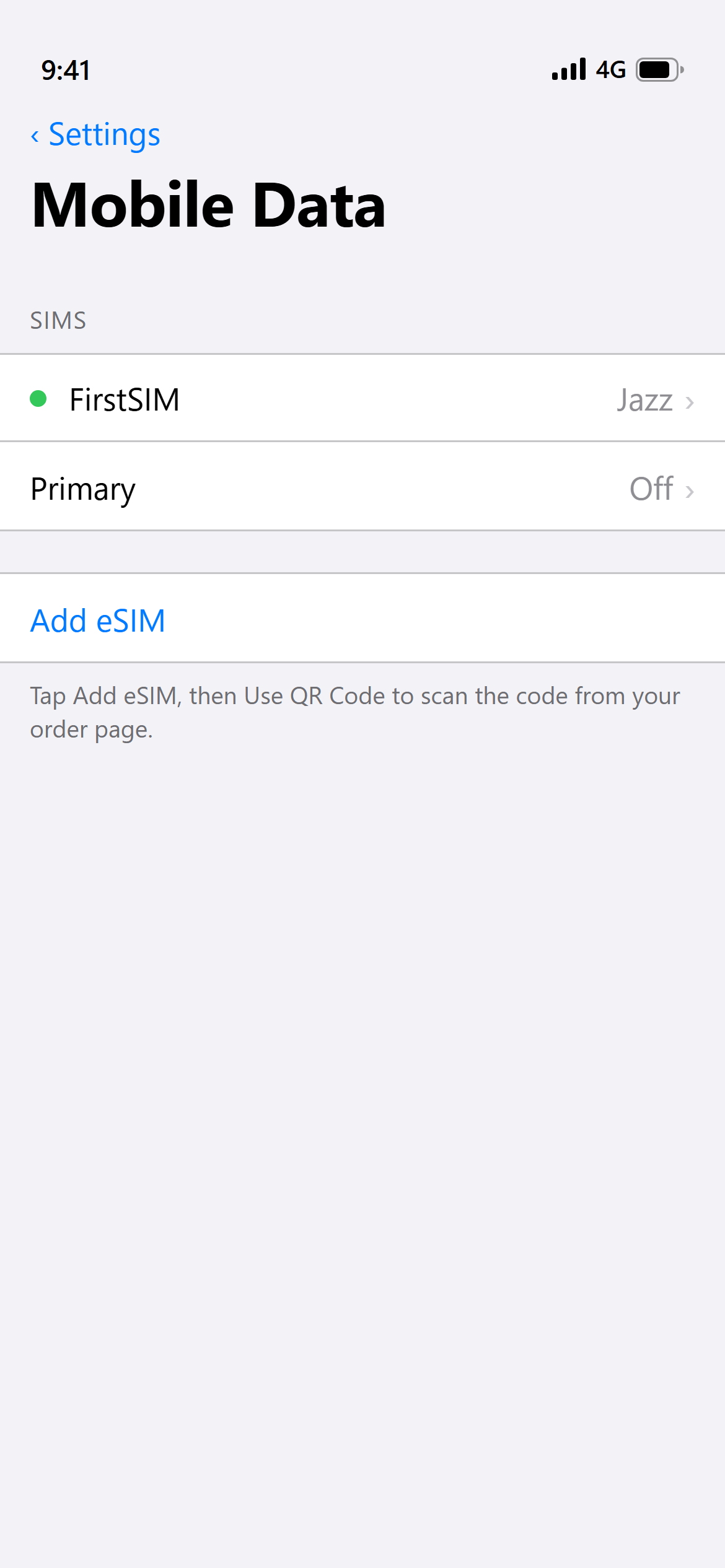
Tap Install on this phone on your order page. iOS opens its own eSIM setup screen.
On a second device instead? Go to Settings → Mobile Data → Add eSIM → Use QR Code and scan the code on your order page.
-
2
Confirm adding the eSIM
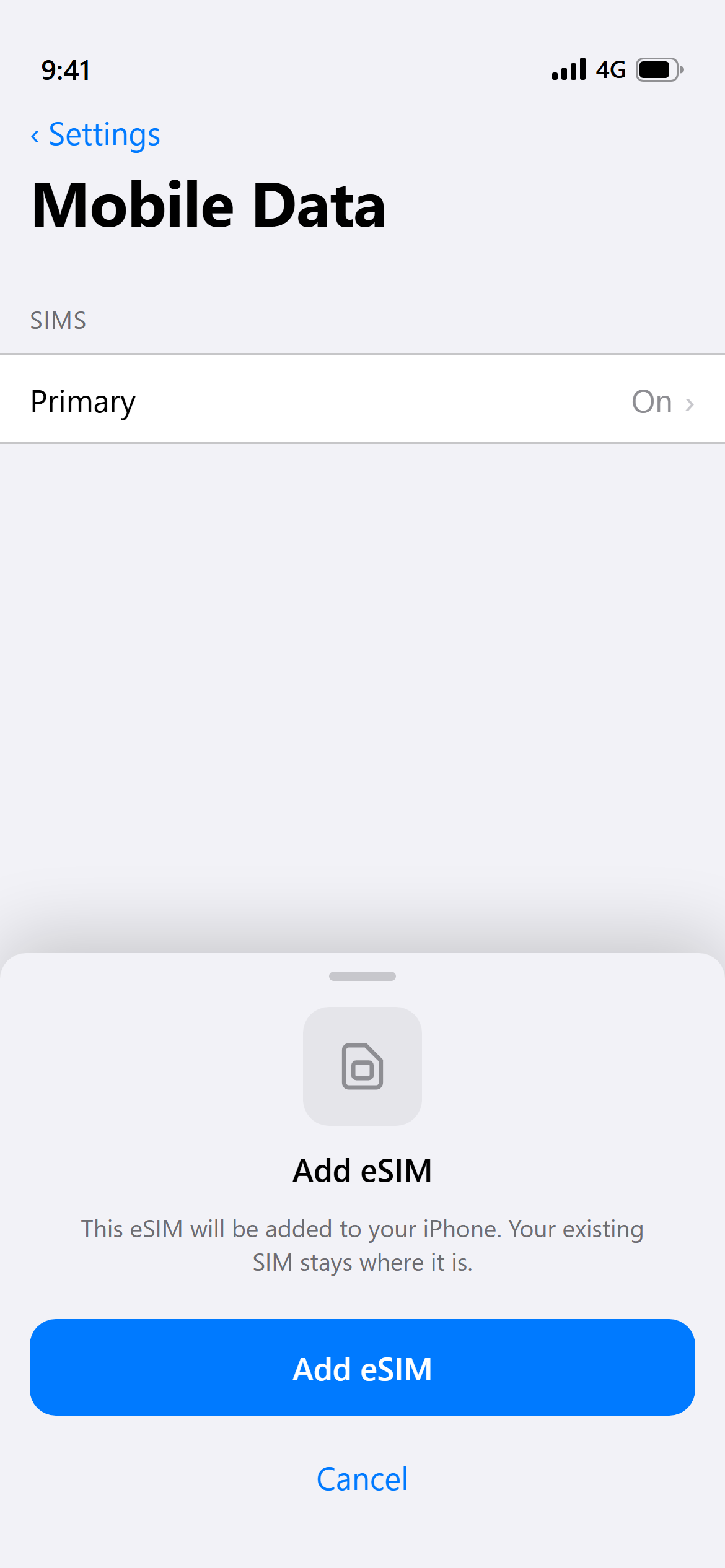
Tap Continue, then Add eSIM. It takes a few seconds while your phone talks to the network.
-
3
Label it
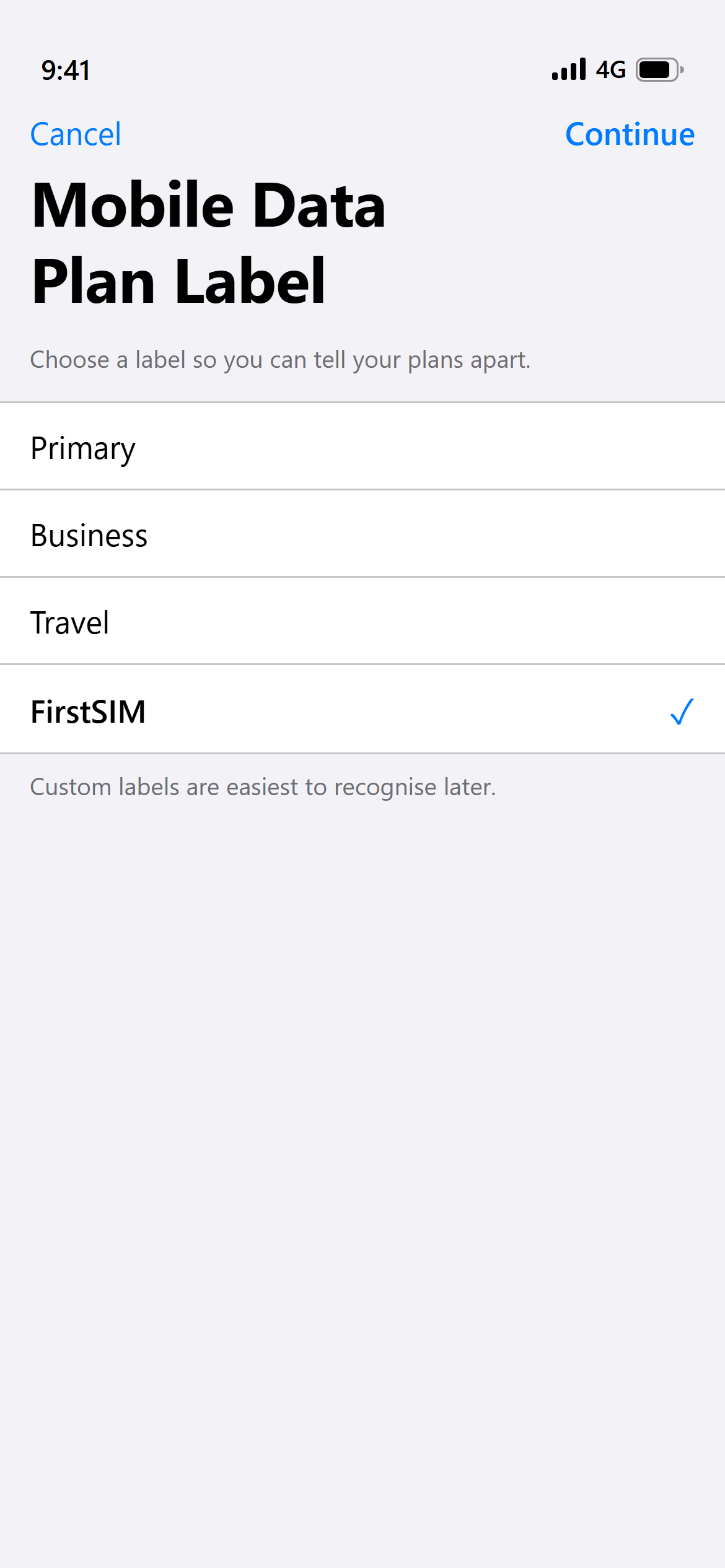
iPhone offers Primary, Secondary, Travel and a few more. Tap Custom Label and type FirstSIM, so you can tell it apart from your normal SIM.
Already installed and it says Travel? Settings → Mobile Data → tap the line → its Plan Label → Custom Label. The network name under it is set by the network and stays as it is.
-
4
Keep your usual number as the default
When iOS asks which line to use for calls and iMessage, choose your existing number. For Mobile Data, choose FirstSIM.
Turn OFF Allow Mobile Data Switching — otherwise the phone wanders back to your old SIM and uses its balance.

-
5
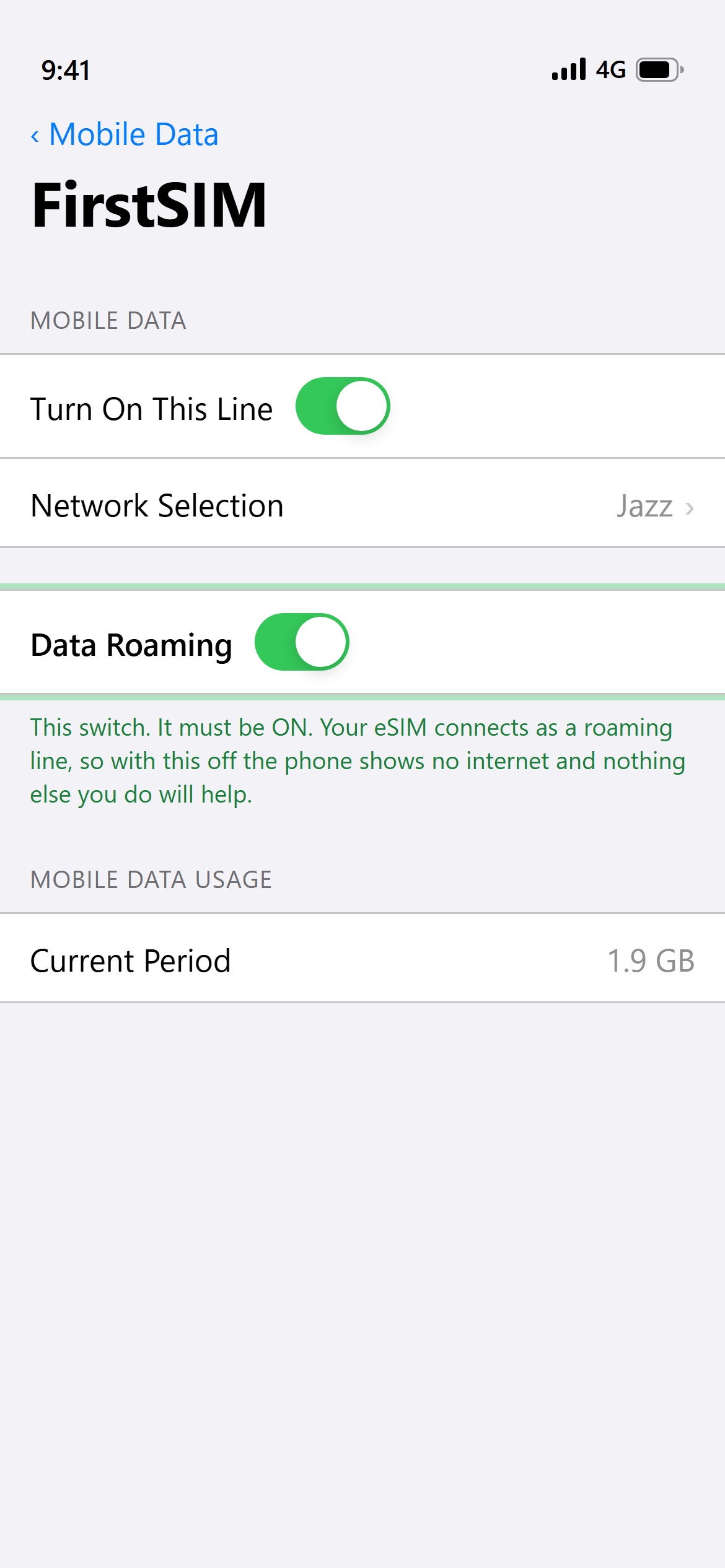
Turn Data Roaming ON
Two settings to get online
A roaming eSIM needs two settings on the phone. Without them it shows signal but no internet. This is how roaming works on every network; it is not a fault.
- Data Roaming: ON for the FirstSIM line.
iPhone: Settings › Mobile Data › FirstSIM line › Data Roaming. Android: Settings › Connections › Mobile networks › Data roaming. - Network: LTE / 4G, not 5G.
iPhone: Settings › Mobile Data › FirstSIM line › Voice & Data › LTE. Android: Mobile networks › Network mode › LTE/3G/2G (auto).
Also check that Mobile Data is set to the FirstSIM line.
Data Roaming ON aur 5G ki jagah LTE — dono zaroori hain. Warna signal aayega, internet nahi.
Settings → Mobile Data → FirstSIM → Data Roaming → ON
This is not a mistake and it does not cost extra. The eSIM connects to a local network as a roaming line, so the phone will sit there showing no internet until this one switch is on. It is the single most common reason someone thinks their eSIM is broken.
- Data Roaming: ON for the FirstSIM line.
Still no internet?
- Data Roaming is off
- Nine times out of ten. Check step 5 again — it is per-SIM, not a global setting.
- Mobile data is pointing at the wrong SIM
- Make sure FirstSIM is selected for data, not your old number.
- Aeroplane mode
- Toggle it on and off. This forces the phone to re-attach to the network.
- Just restart it
- Genuinely fixes a surprising share of cases.
- Still nothing
- Message us with your order reference. If we cannot fix it, you get a full refund.