Installing your eSIM
Two minutes. Do it on the phone you want to use it on — an eSIM cannot be moved afterwards.
Before you start
Be on Wi-Fi, and keep your existing SIM in the phone. This eSIM is internet only — your current number carries on working for calls and SMS.
-
1
Open the install link
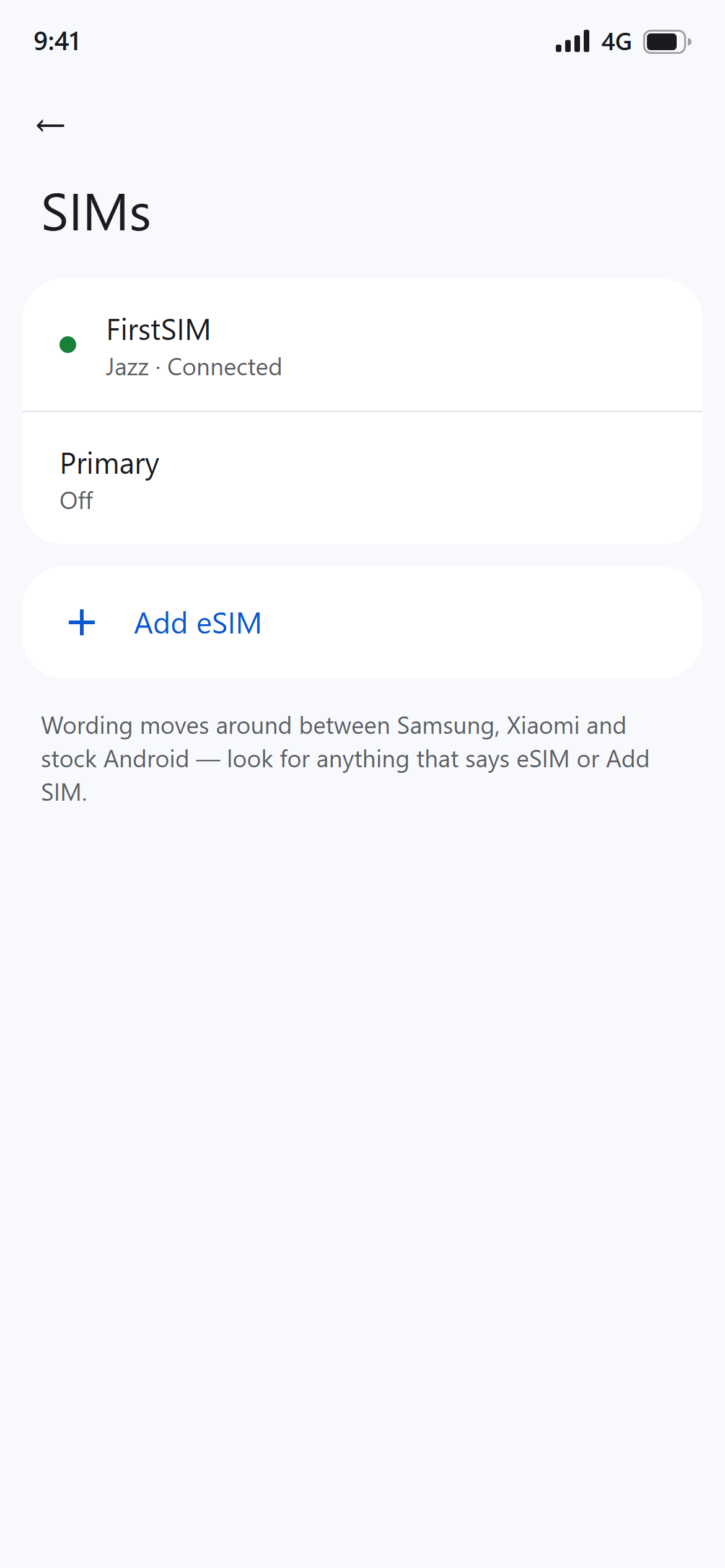
Tap Install on this phone on your order page.
Or go to Settings → Network & internet → SIMs → Add eSIM and scan the QR code from your order page.
The exact wording moves around between Samsung, Xiaomi and stock Android — look for anything that says eSIM or "Add SIM".
-
2
Scan or confirm
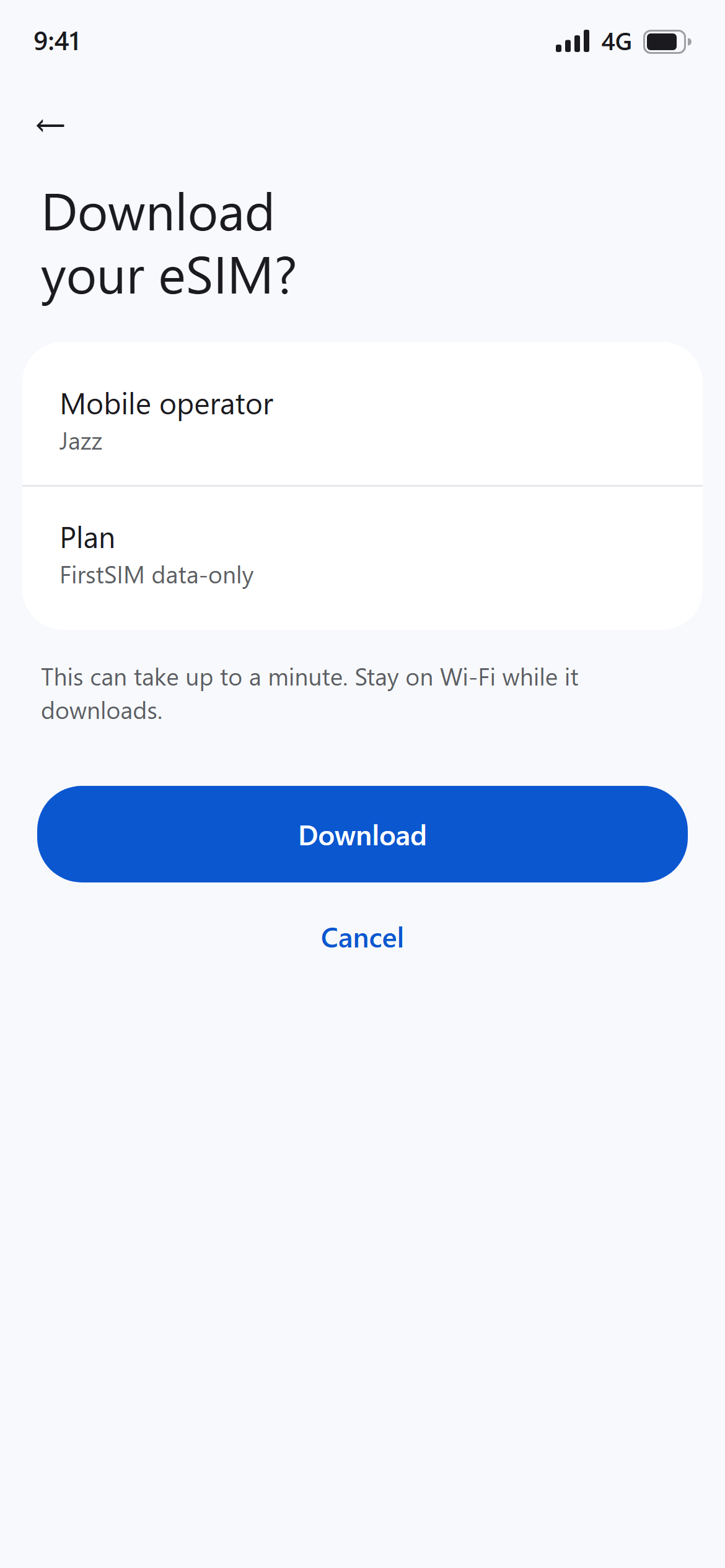
Tap Download or Add when your phone asks to confirm. It takes a few seconds.
-
3
Name it and turn it on
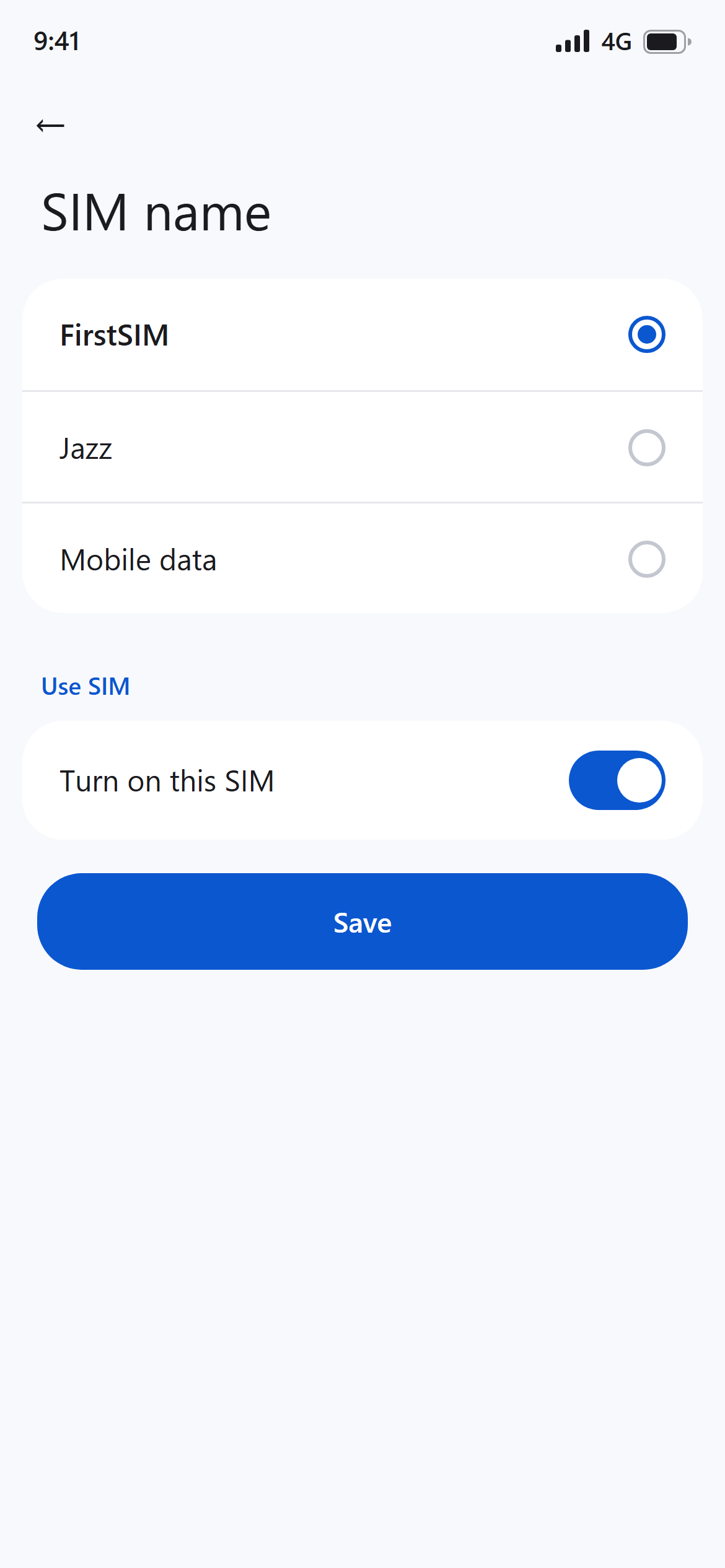
Call it FirstSIM and make sure the new SIM is switched on.
-
4
Use it for mobile data
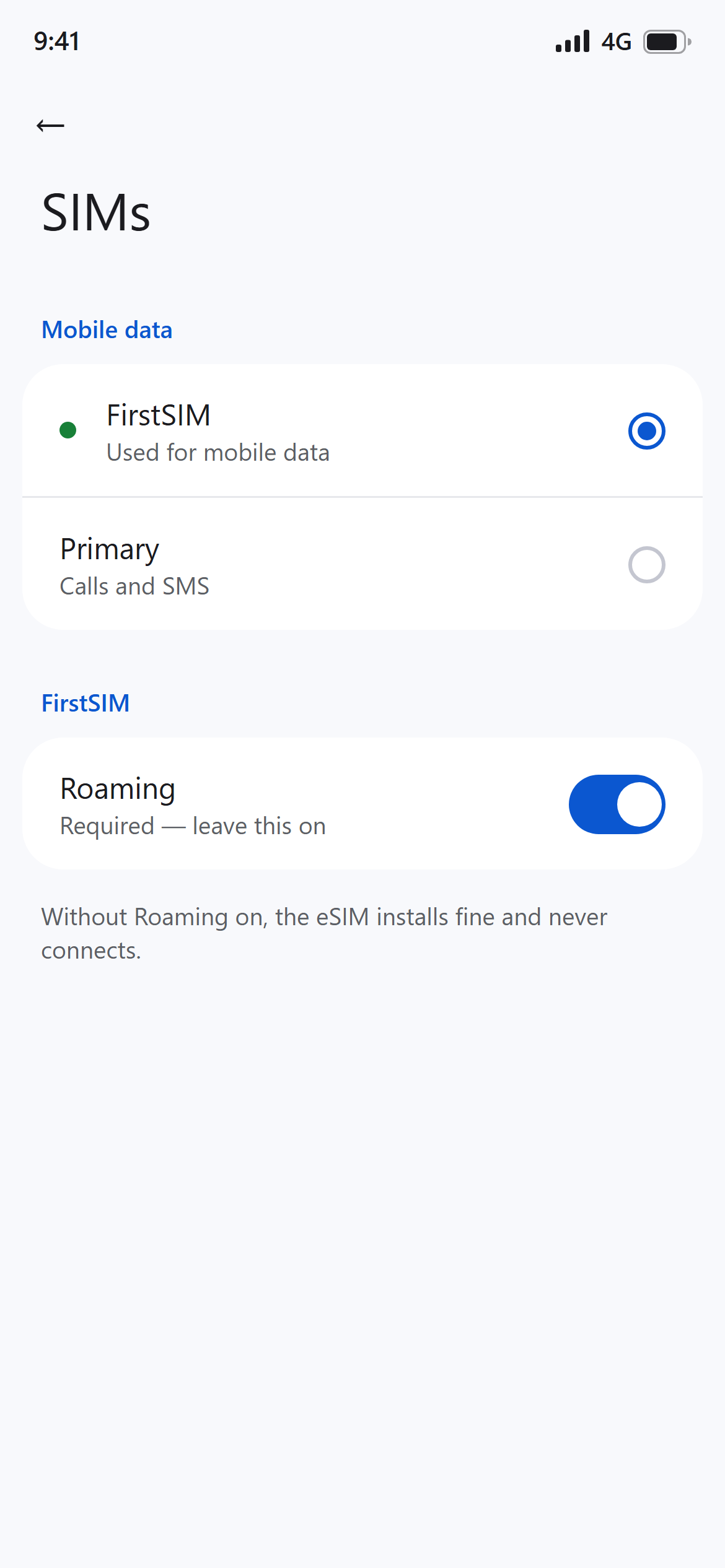
In SIMs → Mobile data, select FirstSIM. Leave calls and SMS on your usual number.
-
5
Turn Data Roaming ON
Two settings to get online
A roaming eSIM needs two settings on the phone. Without them it shows signal but no internet. This is how roaming works on every network; it is not a fault.
- Data Roaming: ON for the FirstSIM line.
iPhone: Settings › Mobile Data › FirstSIM line › Data Roaming. Android: Settings › Connections › Mobile networks › Data roaming. - Network: LTE / 4G, not 5G.
iPhone: Settings › Mobile Data › FirstSIM line › Voice & Data › LTE. Android: Mobile networks › Network mode › LTE/3G/2G (auto).
Also check that Mobile Data is set to the FirstSIM line.
Data Roaming ON aur 5G ki jagah LTE — dono zaroori hain. Warna signal aayega, internet nahi.
Settings → Network & internet → SIMs → FirstSIM → Roaming → ON
This is not a mistake and it does not cost extra. The eSIM connects to a local network as a roaming line, so the phone will sit there showing no internet until this one switch is on. It is the single most common reason someone thinks their eSIM is broken.
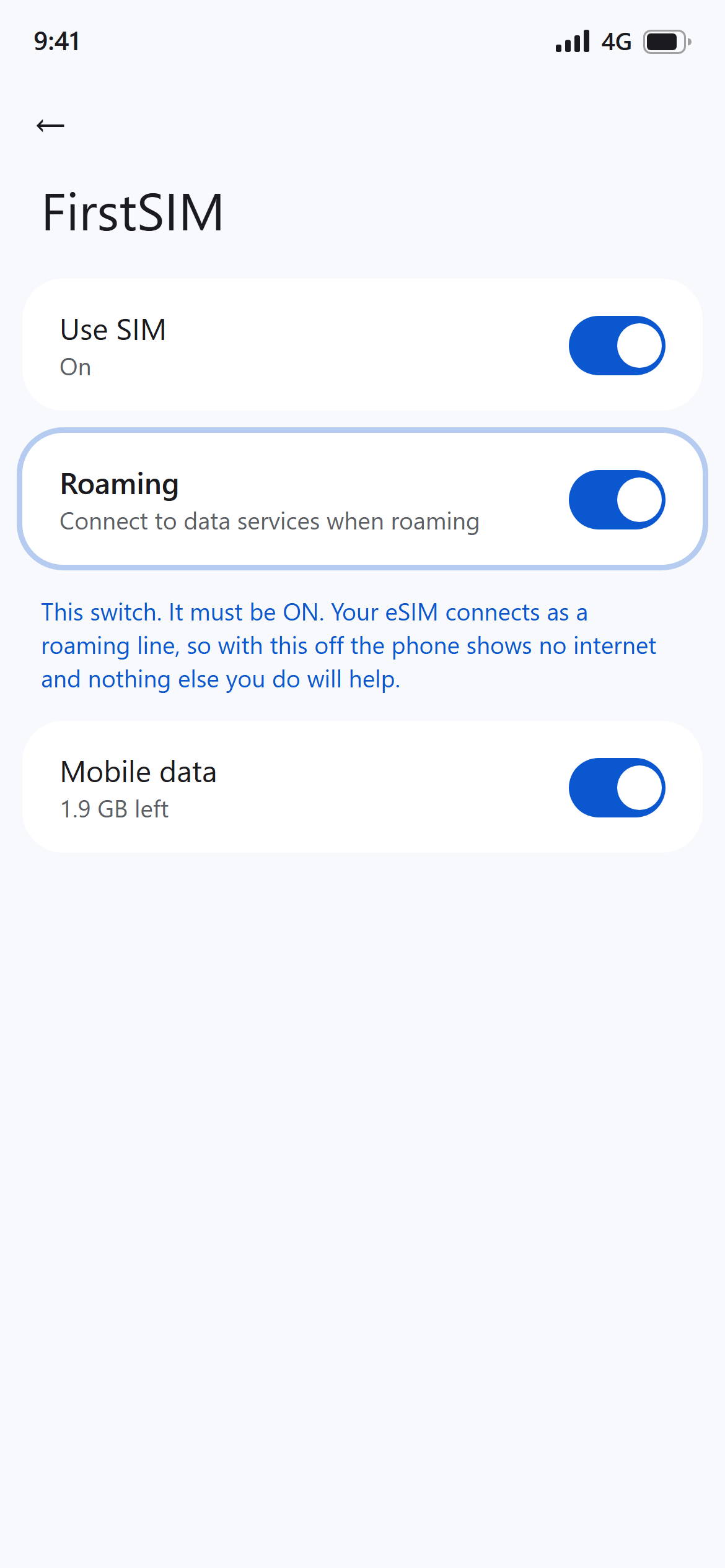
- Data Roaming: ON for the FirstSIM line.
Still no internet?
- Data Roaming is off
- Nine times out of ten. Check step 5 again — it is per-SIM, not a global setting.
- Mobile data is pointing at the wrong SIM
- Make sure FirstSIM is selected for data, not your old number.
- Aeroplane mode
- Toggle it on and off. This forces the phone to re-attach to the network.
- Just restart it
- Genuinely fixes a surprising share of cases.
- Still nothing
- Message us with your order reference. If we cannot fix it, you get a full refund.